
Examples of Non-Accessible & Accessible Documents
- Image 1: (NOT ACCCESSIBLE) This Word document is not accessible: it does not use built-in heading styles, bullet points were typed manually instead of using Word’s list tools, and tables lack defined header rows.
- Image 2: (ACCESSIBLE) This Word document uses built-in heading styles, properly formatted bulleted lists, and tables with designated header rows, allowing screen readers to navigate and interpret the content correctly.


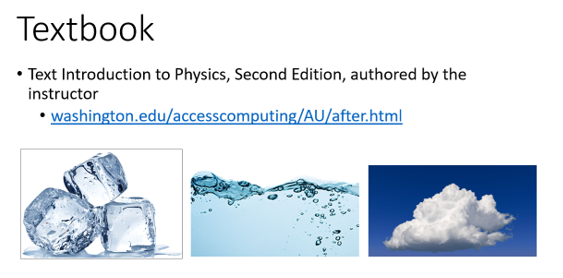
- Slide 1: (NOT ACCESSIBLE) This slide includes a live hyperlink; however, the link text is not meaningful because it displays the full URL. Screen reader users often navigate by pulling up a list of links, and when link text is not descriptive, users may not know where the link will take them.
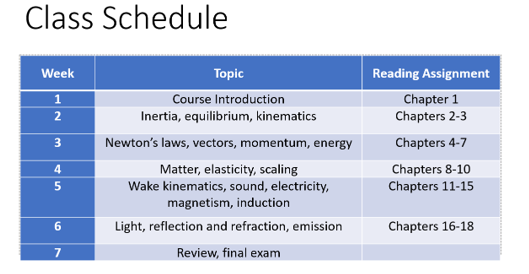
- Slide 2: (NOT ACCESSIBLE) This slide includes a table. Although the first row appears to be a header (Week | Topic | Reading Assignment), it is not marked as a header row in PowerPoint, so screen readers may interpret it as regular data.
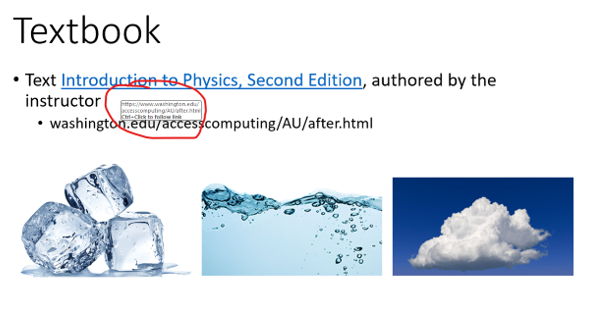
- Slide 3: (ACCESSIBLE) This slide was intentionally designed to model accessible presentation practices, including the following:
- Logical reading order with no overlapping elements or visual clutter
- High color contrast (black text on a white background) that meets WCAG contrast standards
- Descriptive hyperlink text, with the URL included only as a secondary reference for transparency
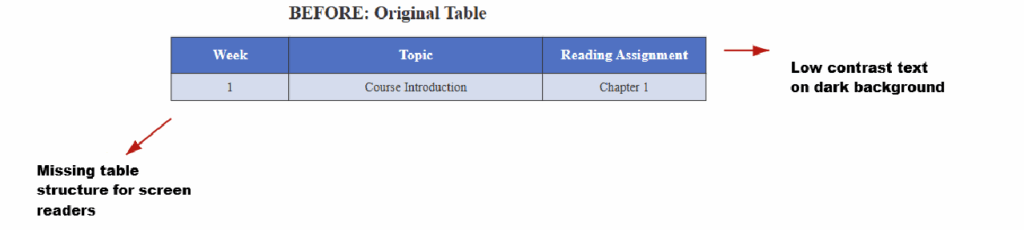
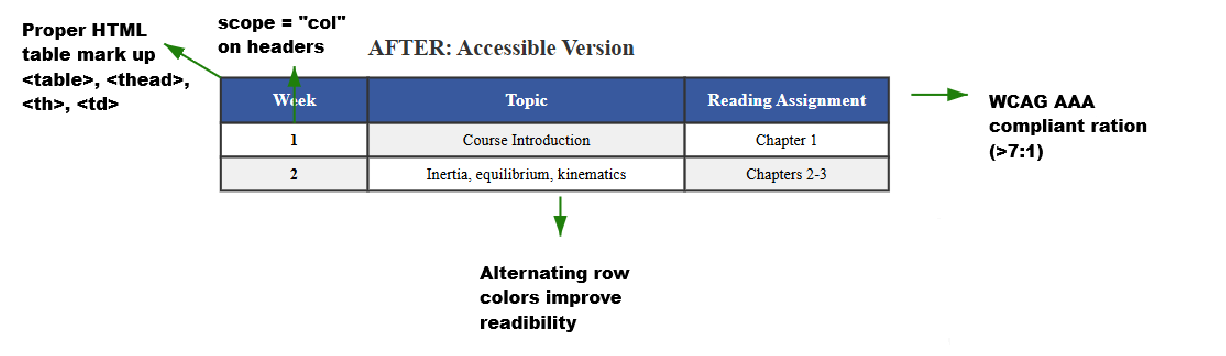
- Slide 4: (ACCESSIBLE) The following improvements highlight the differences between the “before” and “after” versions:
- Better color contrast
- Improved visual design
- Semantic HTML structure
- Clear, descriptive headers
- Image 1: (NOT ACCESSIBLE) When a document is copied on a copy machine that bows or curves the page, the text along those curved lines becomes distorted. Reading software interprets that distortion as missing content, so any words in the bowed areas may be skipped entirely.
- Image 2: (NOT ACCESSIBLE) When a book is copied sideways, the scanned pages are not accessible. Reading software cannot correctly detect orientation, causing text to be misread or skipped.
- Image 3: (ACCESSIBLE) This PDF is accessible because it contains real, selectable text with a logical reading order, proper document structure, and sufficient color contrast, allowing screen readers and other assistive technologies to interpret the content accurately.
- Text can be selected, searched, or copied
- Logical reading order including article title, author, body text (left column right column and section headings
- High contrast and readable typography
- Columns are structured correctly
- Highlighting does not block access
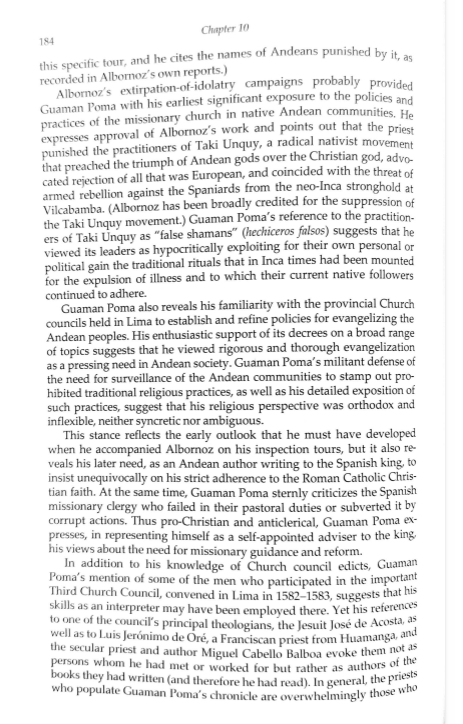
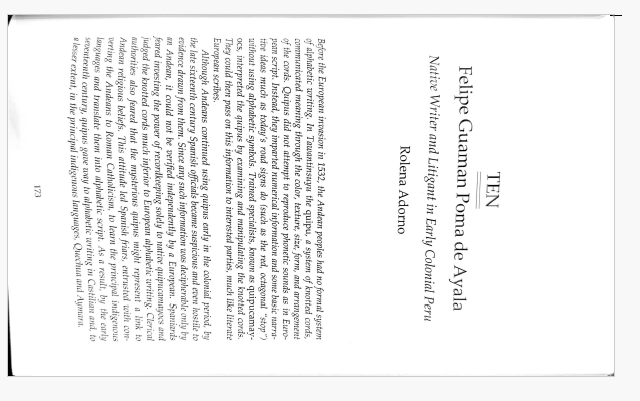

Image 3. Accessible PDF